DV Launchpad
In order to activate an Ethereum validator, 32 ETH must be deposited into the official deposit contract. Distributed validators are no different.
The vast majority of users that created validators to date have used the Eth2** Staking Launchpad**, a public good open-source website built by the Ethereum Foundation alongside participants who later went on to found Obol. This tool has been wildly successful in the safe and educational creation of a significant number of validators on the Ethereum mainnet.
To facilitate the generation of distributed validator keys among remote users with high-trust, the Obol Network developed and maintains a website that enables a group of users to come together and create these threshold keys: The DV Launchpad.
Getting started
For more information on running Charon in a UI-friendly way through the DV Launchpad, take a look at our Quickstart Guides.
The Launchpad home page is the Explorer. The navigation panel links to Explorer, Operator Dashboard, Positions and Test Results. To create something new, click + New and choose:
- Solo: create a distributed validator where you run all the nodes (guide).
- Group: create a cluster invitation for a group of operators (guide).
- Deposit: upload a
deposit-data.jsonfile to activate validators (legacy deposit flow).
Wallets connect through RainbowKit: injected browser wallets (such as MetaMask) and wallets that support WalletConnect.
DV Launchpad Links
| Ethereum Network | Launchpad |
|---|---|
| Mainnet | https://launchpad.obol.org |
| Hoodi | https://hoodi.launchpad.obol.org |
Launchpads for Gnosis Chain and Sepolia are not currently available.
Operator Dashboard
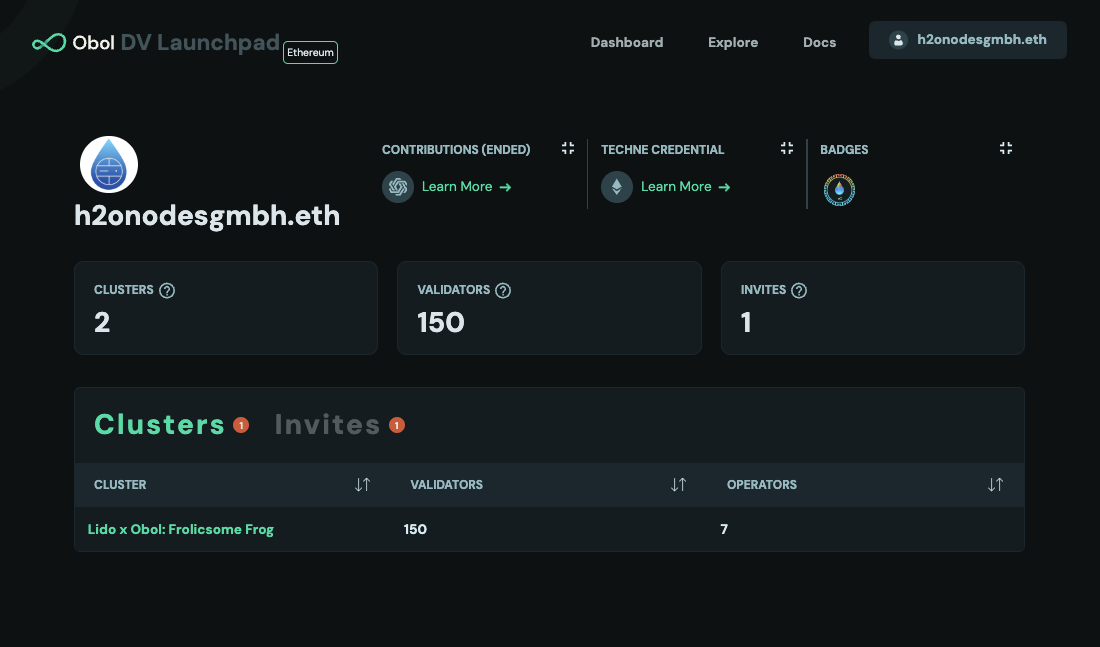
Clicking Operator Dashboard in the navigation panel (or opening /cluster/list) brings you to the operator view for the wallet address currently connected to the launchpad. It shows your Clusters (cluster locks), Active Validators and pending invites. It is also possible to view information about another operator, by substituting another wallet address in the URL (/operator/<address>), or using the explorer, described below.
Unaccepted invites expire after 90 days; older invites are hidden from the dashboard.
View a Cluster
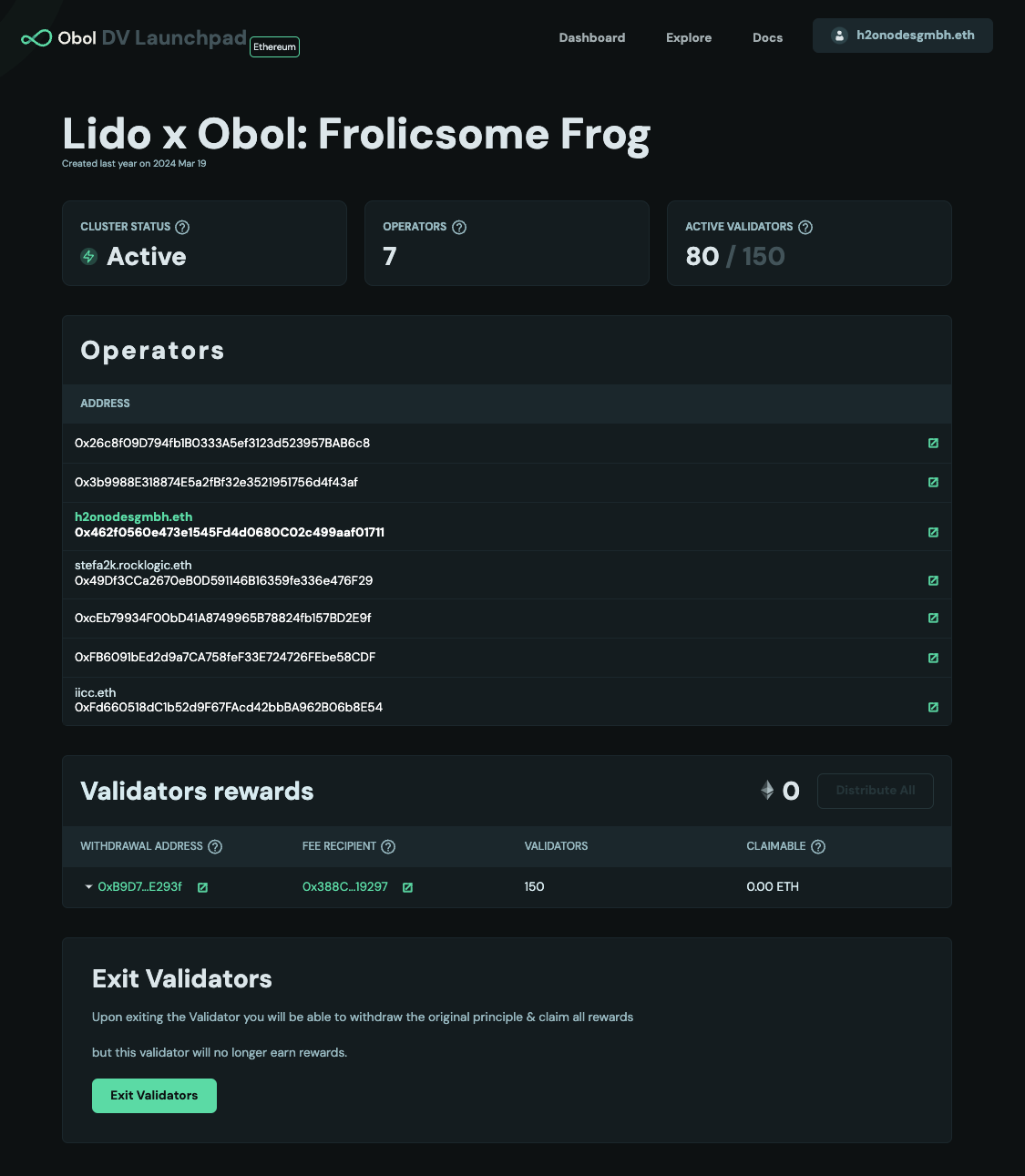
An operator can be part of multiple clusters. Clusters, and cluster invites, are shown on the operator page; the clusters table lists each cluster's Configured Validators. Clicking on a cluster takes you to the cluster page. Here you can see the status of the cluster, the operators, and validators associated with the cluster.
| Cluster status | Meaning |
|---|---|
| Incomplete Definition | Not every operator has accepted the cluster invite yet. |
| Awaiting Key Generation | Every operator has accepted; the DKG ceremony hasn't completed (or wasn't published). |
| Awaiting Deposits | No validator in the cluster is on the beacon chain yet, or its deposit is still pending. |
| Activating | Validators are deposited and queued for activation. |
| Active | At least one validator is active. |
| Exiting | Validators are exiting. |
| Exiting Slashed | A validator was slashed and is being exited. |
| Exited | The cluster's validators have exited (and may have been withdrawn). |
| Unknown | The Launchpad couldn't load the validators' status; try again later. |
[!TIP] If you created a cluster locally, and didn't use the
--publishcommand at the time, you can manually publish it by running this command from the folder with thecluster-lock.jsonin it.
curl -X POST -H "Content-Type: application/json" -d @cluster-lock.json https://api.obol.tech/v1/lock
Use the Explorer
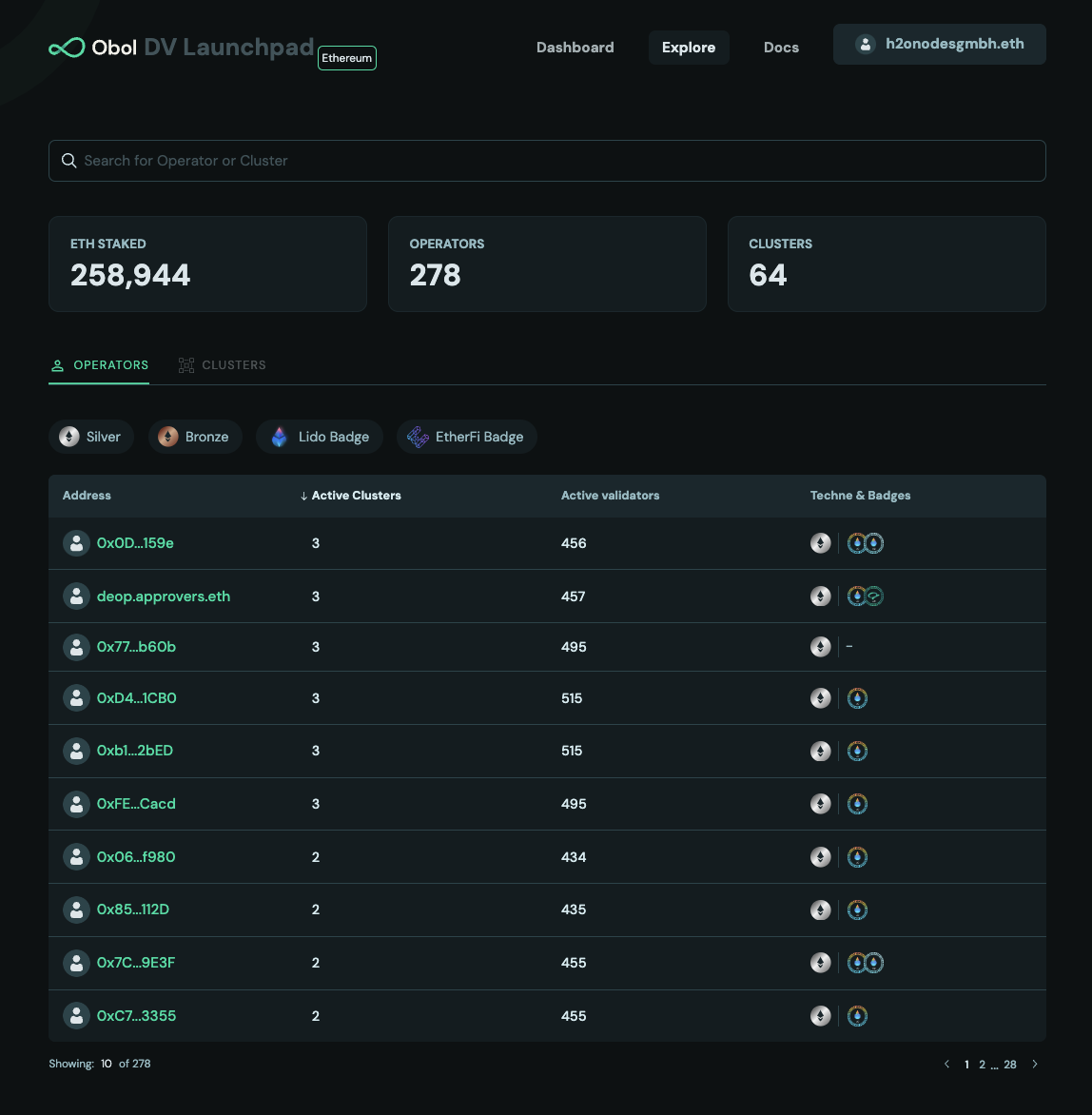
The Explorer is the Launchpad home page (Explorer in the navigation panel). It shows information about every DV cluster and operator being tracked by Obol, in Operators and Clusters tabs. You can search for a cluster or operator by name, and filter:
- Operators by Techne credential (Silver, Bronze) or by Lido Badge.
- Clusters by Lido Cluster.
The selected tab, page, sort order and filters are kept in the URL, so a filtered view can be bookmarked or shared.
Useful links
Replace launchpad.obol.org with hoodi.launchpad.obol.org for Hoodi.
| Page | URL |
|---|---|
| Explorer | https://launchpad.obol.org/?tab=operators or /?tab=clusters, with optional page, sort, dir, techne, badges and pool parameters |
| Operator Dashboard | https://launchpad.obol.org/cluster/list (redirects to your connected address) |
| Any operator | https://launchpad.obol.org/operator/<address> |
| Cluster details | https://launchpad.obol.org/cluster/details?lockHash=<lock hash> |
| Positions | https://launchpad.obol.org/positions |
| Test results | https://launchpad.obol.org/test-results?enr=<ENR> (only results published with --publish, see Test a Cluster) |